
The essentials
What PuTTY does—and when you need it
If you are looking for a PuTTY download for Windows 11, you probably have a server to reach, a router to configure, or a tutorial asking you to open an SSH session. PuTTY gives you a small desktop window for those jobs. You enter an address, choose a connection type, and work with the other computer through a terminal. It is not a remote-desktop viewer, and it does not turn a command-line server into a graphical desktop.
The useful distinction is between the connection and the work you do afterward. PuTTY handles the connection and displays the terminal. The server decides which account you can use, what commands are available, and what you are allowed to change. Installing PuTTY does not create a server account or give you administrator access. Keep the address, username, and connection instructions from your hosting provider or system administrator nearby.
SSH is the sensible starting point for a remote login over the internet. PuTTY also supports other connection types, including serial connections for some hardware. Those are separate workflows: a serial console uses a local device and communication settings, not an SSH server address. Choose the protocol your equipment or service actually requires. When a guide simply says “connect to your Linux server,” it usually means SSH.
You do not have to learn every item in the settings tree before using the program. Start with a working connection, save the settings you need, and add features only when they solve a real problem. That approach is easier to troubleshoot than changing five settings at once. Keep a short note of each change so you can undo it later.
Before you download
Choose the right PuTTY download for Windows 11
The main choice is your processor architecture, followed by how you want to install the software. For a typical Intel or AMD Windows 11 computer, choose the 64-bit x64 installer. For a Windows-on-Arm computer, choose ARM64. A laptop brand alone does not tell you which architecture it uses; manufacturers can sell different processor families under similar product names.
Open Windows Settings, go to System, then About, and read the System type entry. An x64-based processor calls for the x64 download. An ARM-based processor calls for ARM64. Do not confuse the size of your memory or the version of Windows with the processor type. If the wording is unclear, ask the person who manages the device rather than guessing.
| Your situation | Choose | Why |
|---|---|---|
| Intel or AMD Windows 11 PC | x64 MSI installer | A straightforward installation with the companion tools. |
| Windows-on-Arm PC | ARM64 MSI installer | The native build for your processor. |
| One quick connection, no installation | The matching standalone EXE | Open the SSH client directly. |
| A managed work computer | Your IT team's approved package | Local policy may restrict downloads or installation. |
The standalone executable is convenient, but “no installer” is not the same as “leaves no settings behind.” A normal PuTTY session can store configuration and trusted host keys in the Windows Registry. If you need a fully portable environment, check how the particular package handles those settings instead of assuming that any EXE is completely portable.
The official release page also offers older-architecture builds. This guide focuses on Windows 11, so the main download controls offer x64 and ARM64 rather than presenting a long list of files that most visitors will never need.
A quick safety check
Check the source before opening the installer
Our download buttons link to the release files published by the PuTTY
project. We do not wrap the installer, add a download manager, or host a
modified copy. The address may show the.earth.li; that is the
file host linked from the project's own release page. If you want to verify
the route yourself, open the official page and compare the destination
before downloading.
A familiar filename is not proof that a file is authentic. Someone can
rename a different program to putty.exe. Likewise, a padlock in
your browser confirms an encrypted connection to a website, not that every
file offered there is trustworthy. Source, signature, and file integrity
answer different questions; it helps to keep them separate.
After downloading, open the file's Properties in Windows and inspect its digital signature when available. If Windows shows a security warning, read the publisher and filename rather than clicking through automatically. An unexpected publisher, an altered filename, or a download you did not request is a reason to stop. On a work device, send the warning to your IT team.
For an integrity check, compare a SHA-256 hash with the checksum for that
exact release and architecture. In PowerShell, Get-FileHash can
calculate the local file's hash. A matching hash is useful only when the
expected value comes from a trustworthy source. Our
source links include the project's checksum file and
signing-key information so you can follow the verification trail.
Get-FileHash "$env:USERPROFILE\Downloads\putty-64bit-0.85-installer.msi" -Algorithm SHA256Getting set up
Install PuTTY on Windows 11
Download the package that matches your processor and open the MSI from your Downloads folder. Read the setup prompts, choose a location if you need to, and complete the installation. Windows may ask for administrator approval depending on the installation and your device's policy. If you cannot approve the request, use an approved deployment method or ask the administrator; do not try to work around a workplace restriction.
The installer is a good choice when you expect to use SSH regularly. It provides PuTTY alongside utilities such as PuTTYgen for keys and Pageant for key-based authentication. You can find the installed client through the Start menu. If an older copy is already present, check which shortcut you are opening so you do not accidentally keep using a different executable.
For the standalone version, save the matching
putty.exe somewhere you can find again, then open it. Moving
the file after creating a shortcut can break that shortcut. Keep a simple
folder for the program rather than launching a new copy from Downloads every
time. If you also need PuTTYgen or another companion utility, obtain it from
the same official release page.
The first window contains connection settings, not an account-registration form. You do not need to sign up with us, buy a licence, or enter payment details to use PuTTY. If a download site asks you to pay for access to the standard client, take a step back and compare it with the project's own distribution.
Before moving on, check that you can open the client and see the Session screen. There is no need to change fonts, colours, forwarding rules, or authentication options yet. First establish a basic connection. You can make the terminal comfortable to read once the essential details work.
Your first session
Connect to a server with SSH
You need three pieces of information: the server's hostname or IP address, the SSH port, and your account username. Use the values your provider gives you. A website address is not always the right SSH hostname, and the username you use in a hosting dashboard may be different from the account on the server.
In the Session screen, enter the address in Host Name, select SSH, and check
the port. Port 22 is conventional, but a provider can use another port. Do
not add a web URL prefix such as https://, and do not paste a
path from your browser. PuTTY needs a network host, not a page address.
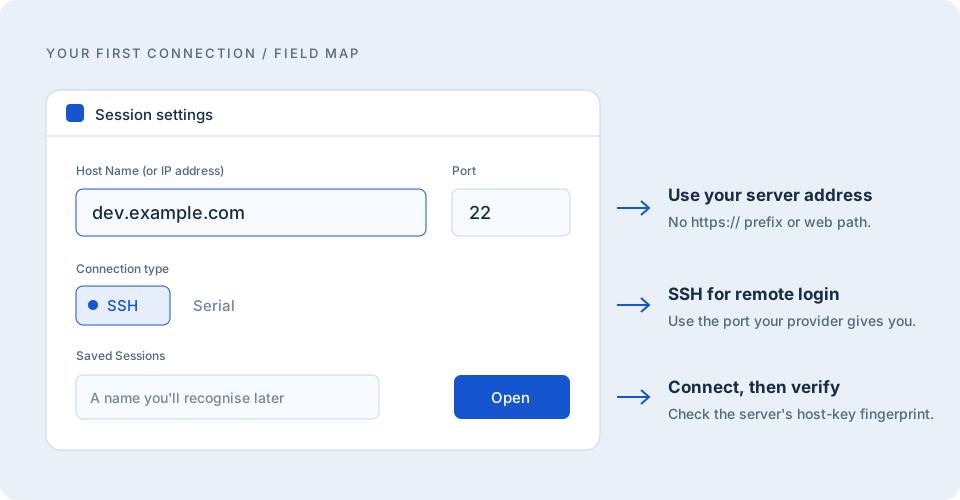
Choose Open to start the connection. On your first visit to a server, PuTTY may ask whether you trust its host key. Compare the fingerprint with one supplied through your provider's trusted dashboard or administrator. Do not accept an unfamiliar key simply to get past the message. The host-key section explains what this check protects.
Once the terminal asks for your login name, enter the server account username. If password authentication is enabled, enter the password when prompted. The terminal normally shows no characters as you type a password—not even dots. That can feel broken the first time, but it is expected. Type carefully and press Enter once.
After signing in, the prompt belongs to the remote system. Commands run
there, not on your Windows computer. Start with harmless checks such as
finding your current directory before making changes. When you are finished,
use the server's normal logout command, often exit. Avoid
closing the window in the middle of a task that still needs attention.
Know who you are connecting to
Understand the host-key warning
An SSH host key identifies the server. Your password or private key identifies you. These are different halves of the same conversation: before proving who you are, you should have a reasonable basis for trusting the computer asking. That is why a host-key prompt is useful rather than just an interruption.
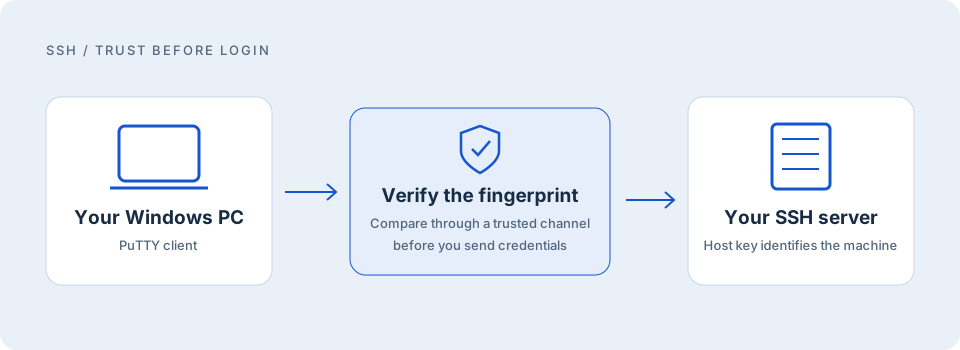
A first-time prompt can be normal because PuTTY has not remembered this server before. A changed-key warning deserves more attention. A server rebuild, a replacement machine, or an administrator rotating keys can explain a change, but so can an unexpected destination. Confirm the reason through a separate trusted channel before updating the stored key.
Checking the address twice is worthwhile. Similar hostnames, an old saved session, and a copied IP from another environment can send you to the wrong place. If the provider publishes several valid fingerprints, compare the key type as well as the fingerprint value. Keep verification information with your connection notes, but never store passwords in a public document.
Make the next connection easier
Save a session without saving your password
Once the address and port are correct, give the connection a clear name in Saved Sessions and choose Save. A name such as “Staging web server” is easier to recognise than a bare IP address. To reuse it, select the saved entry, load its settings, and open the connection. Check the host before using a session copied from another environment.
You can save a default username in the connection settings if that makes your workflow easier. It is not a password vault. Keep passwords in a suitable password manager, and do not paste secrets into session names, terminal titles, log files, or this website. For repeated access, consider key-based authentication instead of looking for a way to embed the account password.
If you edit a saved session, return to the Session screen and save the entry again. Changing a setting for the current window does not necessarily update the saved configuration you will load tomorrow. This small distinction explains many “it worked yesterday” moments.
When you connect regularly
Use PuTTYgen and an SSH key
Key-based login uses a pair of keys. The public key goes to the server account you want to access. The private key stays with you. You do not email your private key to the hosting provider or paste it into an online converter. If a service asks for a key, check whether it means the public half before sending anything.
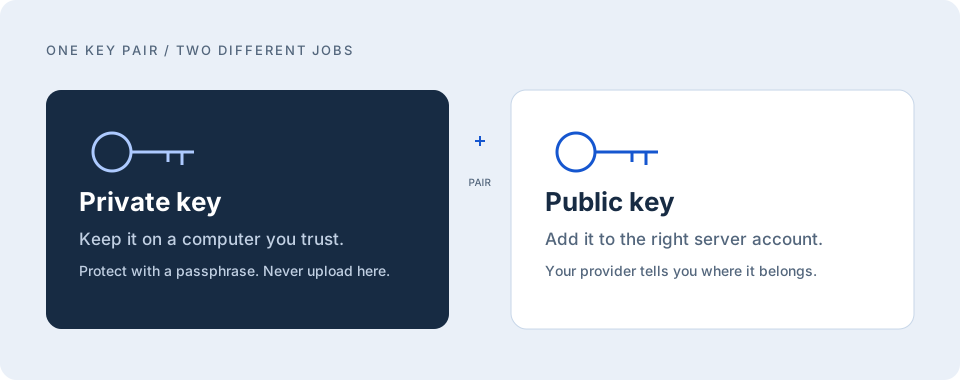
Open PuTTYgen, choose a key type accepted by the server, and generate a pair. A current server may support Ed25519, but follow your organisation's requirements rather than treating one choice as universal. Add a useful comment, protect the private key with a strong passphrase, and save it somewhere you can back up securely.
Install the public key using your provider's documented method. Some dashboards have a dedicated SSH-key field; others require an administrator to add the key to your account. Installing a public key for one user does not automatically authorise it for every account on the machine. If login fails, check the username before generating a second key pair.
In PuTTY, open the SSH authentication settings and select your private-key file. The precise tree labels can differ between versions, so look for the credentials or private-key setting under Connection and SSH. Save the session after making the change. When you connect, a passphrase prompt unlocks the private key locally; it is not the remote account password.
PuTTYgen can also load supported existing private-key formats and save a PuTTY-format key when needed. Conversion should stay on a machine you trust. Keep a protected backup before changing formats, and remove unneeded copies carefully. A working key does not remove the need to verify the server's host key.
Less repetition, the same care
What Pageant adds to your workflow
Pageant is the authentication agent supplied with PuTTY. It can keep an unlocked key available while it is running, allowing compatible tools to request authentication without asking you to unlock the same key for every connection. That is useful when you open several sessions during a workday.
Load only the keys you need and treat an unlocked agent as part of your logged-in working environment. Lock the Windows computer when you step away. On a shared device, think carefully about how long keys remain available. Convenience is worthwhile, but it should not make a borrowed laptop the permanent home of your production access.
Agent forwarding is a separate feature, not something to enable just because you use Pageant. It extends authentication access into a remote session and changes what you trust. Leave it off unless you understand why the workflow needs it and which machines are involved.
Beyond the terminal
Transfer files and recognise the companion tools
The terminal window is not a drag-and-drop file browser. When you need to move a file, choose an appropriate transfer tool rather than pasting its contents into the terminal. The PuTTY suite includes PSCP and PSFTP; their names are worth recognising even if you prefer a graphical SFTP client for everyday work.
PSFTP provides an interactive file-transfer interface. PSCP handles command-line transfers, and Plink provides command-line access to PuTTY's connection functionality. PuTTYgen manages keys, while Pageant acts as a key agent. Each tool has a specific job. Downloading the main standalone client does not automatically place every utility next to it.
For scripts, use the documentation for the exact utility and handle credentials deliberately. Do not place a password in a command that will end up in shell history or a shared log. Test the destination path with a non-sensitive file first, especially when uploading to a live web directory. A successful SSH login does not mean every remote folder is writable.
Take care with copied commands and logs
A terminal is a place where pasted text can become an action. Before copying a command from any guide, read the whole line and replace example values deliberately. Check the destination directory, especially when a command overwrites or removes files. Avoid pasting a large block into a live server just to see what happens. Start with one harmless command and confirm the result before continuing.
Session logs can help explain a problem, but they can also contain account names, addresses, paths and sensitive output. If you enable logging, choose a location you control and inspect the contents before sharing them. A support request rarely needs your entire terminal history. Send the relevant error and a short description of what preceded it, with private information removed. Keep logs for a clear purpose rather than collecting them indefinitely.
When the connection does not work
Fix common PuTTY connection problems
Connection timed out
Start with reachability, not your password. Confirm the address, SSH port, required VPN, and any provider firewall rules. A timeout can happen before the server ever asks you to authenticate. Reinstalling PuTTY usually does not fix an unreachable host. Ask the administrator whether the service is listening and whether your network is permitted to reach it.
Connection refused
This points you toward the service or port rather than immediately proving a credential problem. Check that you selected SSH and used the port the provider supplied. The machine may be reachable while the expected SSH service is unavailable. Do not scan unrelated addresses or keep trying arbitrary ports; get the correct connection details.
Access denied or a rejected key
Check the account username, keyboard layout, and the authentication method allowed by the server. For keys, confirm that the matching public key is installed for that account and that you selected the intended private key. Server-side permissions and policy can also matter. Ask for the relevant server log when the local message is too general to explain the failure.
The terminal seems frozen
First decide whether you are typing at a password prompt, where invisible input is normal. If an established session stops responding, consider the network and remote process before assuming the client crashed. Do not run a destructive command twice because the first result was slow. Reconnect carefully and check what actually completed.
Keep it useful
Updating PuTTY and choosing an alternative
Return to the official release page when you need an update, then check the version and architecture again. An old shortcut can keep opening an older standalone EXE even after you download a newer one. Replace the copy you actually use and keep a backup of important session settings before making changes.
PuTTY is not the only way to use SSH on Windows 11. Some people prefer a command-line client in Windows Terminal; others value PuTTY's saved-session window or serial-console support. The right choice depends on the task and the environment you manage, not on a claim that one client is best for everyone. Check organisational policy before replacing an approved tool.
Quick answers
PuTTY download questions
Is PuTTY free for commercial use?
Yes. The project distributes PuTTY under the MIT licence, including permission for commercial use. Redistribution has notice requirements; read the linked licence rather than treating “free” as “no conditions.”
Should I download 32-bit PuTTY for Windows 11?
For the computers covered here, use x64 or ARM64 according to System type. The official page retains other builds for different environments, but they are not the default recommendation for this guide.
Does the standalone EXE save nothing on my computer?
No. Running without an installer does not guarantee a clean, settings-free session. PuTTY can remember configuration and host keys in the Windows Registry.
Why does my password disappear when I type?
The terminal normally hides password input completely. Type the password and press Enter. If authentication fails, check the username, keyboard layout and account requirements.
Can this site see my SSH password or keys?
No SSH credentials are requested or processed here. You download through the project's file host and connect using the desktop application. Never send private keys or passwords to our contact address.
Is this the official PuTTY website?
No. PuTTY Field Guide is an independent guide published by Freeware Catalog. Simon Tatham and the PuTTY contributors develop the software. Our About page explains the relationship and editorial process.
Go straight to the source
Official references
The release details and technical guidance were checked against these project resources. Our illustrations explain the workflow; they are not application screenshots or evidence of a server test.
- PuTTY release files and architectures
- Getting started and verifying host keys
- Using the terminal and connection features
- Session configuration and settings
- PuTTYgen and SSH authentication
- Pageant key agent
- Common error messages
- SHA-256 checksums for release 0.85
- Project signing keys
- PuTTY licence
Found something unclear? Send a correction. For information about this publication and its data practices, read About and Privacy.